


mt8rjsei,mt8rjsek,mt8rjsel,
/supportportal/Guest/1789896667391.ajax
| Region | Country | Toll-Free Numbers | Direct Dial Numbers |
|---|---|---|---|
| Asia Pacific | Australia | +1800009081 | +1-248-365-2525 |
| Asia Pacific | China - Mainland | +400-6225018 (Supplier Portal Only) 86-(21)-6171-3290 (EDI and China Based Portals) | - |
| Asia Pacific | Japan | +0120-683167 or by email | +81-0345607887 |
| Asia Pacific | Korea | +080-7810883 (Supplier Portal Support) | - |
| Asia Pacific | China-Taiwan | +0800 666813 | - |
| Europe, Middle East, Africa | Belgium | +800-74500022 | - |
| Europe, Middle East, Africa | France | +800-74500022 | - |
| Europe, Middle East, Africa | Germany | +800-74500022 (dial + or 00) | - |
| Europe, Middle East, Africa | Italy | +800-74500022 | - |
| Europe, Middle East, Africa | Netherlands | +800-74500022 | - |
| Europe, Middle East, Africa | Poland | +800-74500022 | - |
| Europe, Middle East, Africa | Portugal | +800-74500022 | - |
| Europe, Middle East, Africa | South Africa | +800-74500022 | - |
| Europe, Middle East, Africa | Spain | +800-74500022 | - |
| Europe, Middle East, Africa | Sweden | +800-74500022 | +44-191-335-1824 |
| Europe, Middle East, Africa | United Kingdom | +080-07-834-347 | +44-91-335-1826 |
| North America | Canada | 877-884-5775 | +1-248-365-2525 |
| North America | Mexico | 800-668-0418 | +1-248-365-2527 |
| North America | USA | 877-884-5775 877-884-5776 test | +1-248-365-2525 +1-248-365-2526 test |
| Latin America | Argentina | +0800-6662801 | +1-248-365-2527 |
| Latin America | Brazil | +0800-8912905 | - |
| No contact numbers match your filters. | |||
OpenText Support Portal Tour
Customer Self-Help Portal
Welcome to the redesigned OpenText Support Portal
A guided tour of the features and navigation of the enhanced Support Portal, your self-help resource for OpenText Supplier Portal, Core Collaboration Access, Core Secure Access, B2B Connect, and Supplier Connection products and services.
What you can do in the Support Portal
- View Alerts and Bulletins about OpenText products and services
- Search for and read knowledge documents
- Open a support ticket
- Track the status of your support tickets
- Find local toll-free support numbers
- Chat with our virtual assistant or a live support agent
At a glance
| Where to look | What you can do there |
|---|---|
| Home page | Search the knowledge base, see alerts, and open Help Topics, Bulletins, Support, and Tour. |
| My Support Tickets | Open a new ticket, check ticket status, and add updates to existing tickets. |
| Knowledge Base | Search and filter self-help articles by product, audience, area, and content type. |
| Contact Us | Find toll-free numbers by region or country. |
| Partner Portals | Switch to the OEM portals you have access to (waffle icon, once logged in). |
| Chat (OT icon) | Start with Aimy, our virtual assistant, then continue with a live agent if needed. |
1. Logging in
Log in with your OpenText Supplier Portal or 2B2 Connect (Covisint) credentials.
If you are an OpenText customer and do not have either set of credentials, please call the support team for help creating them.

Figure 1. Log in from the top-right corner of the page.
2. Home page
The menu across the top of the home page links to the core functions of the portal. Self-help tools are front and center:
- My Support Tickets – create new tickets, check status, and update existing tickets.
- Knowledge Base – browse knowledge and self-help articles.
- Contact Us – find toll-free numbers for your region.
- Partner Portals (waffle icon) – once logged in, go directly to the OEM portals you can access.
Alerts appear as banners across the top of the home page. They notify you of urgent announcements such as incidents and scheduled maintenance.
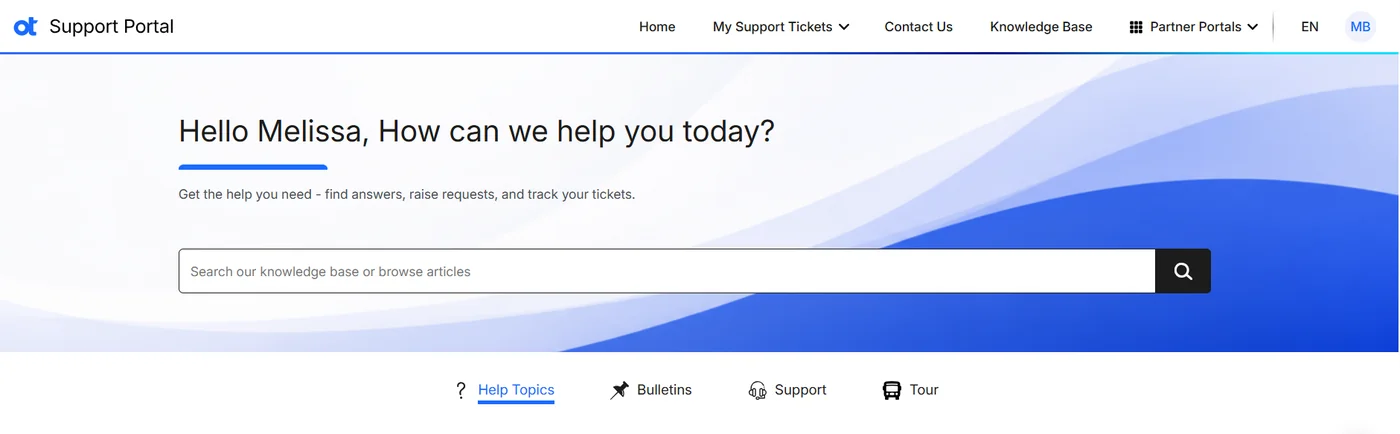
Figure 2. The Support Portal home page.
3. Help Topics and FAQs
Help Topics lists answers to the questions we hear most often. Check here first for quick answers.
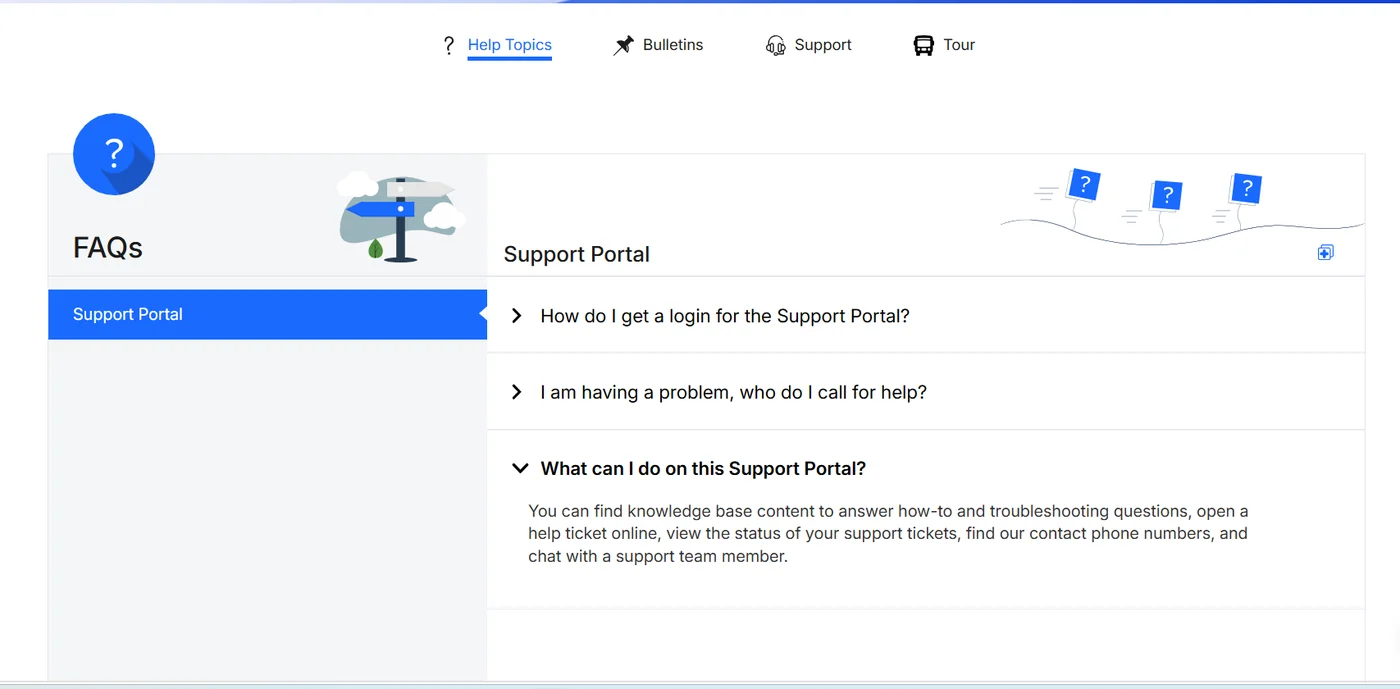
Figure 3. Help Topics and frequently asked questions.
4. Bulletins
Bulletins share important information with all Support Portal users. To open them, select the Bulletins tab on the home page.
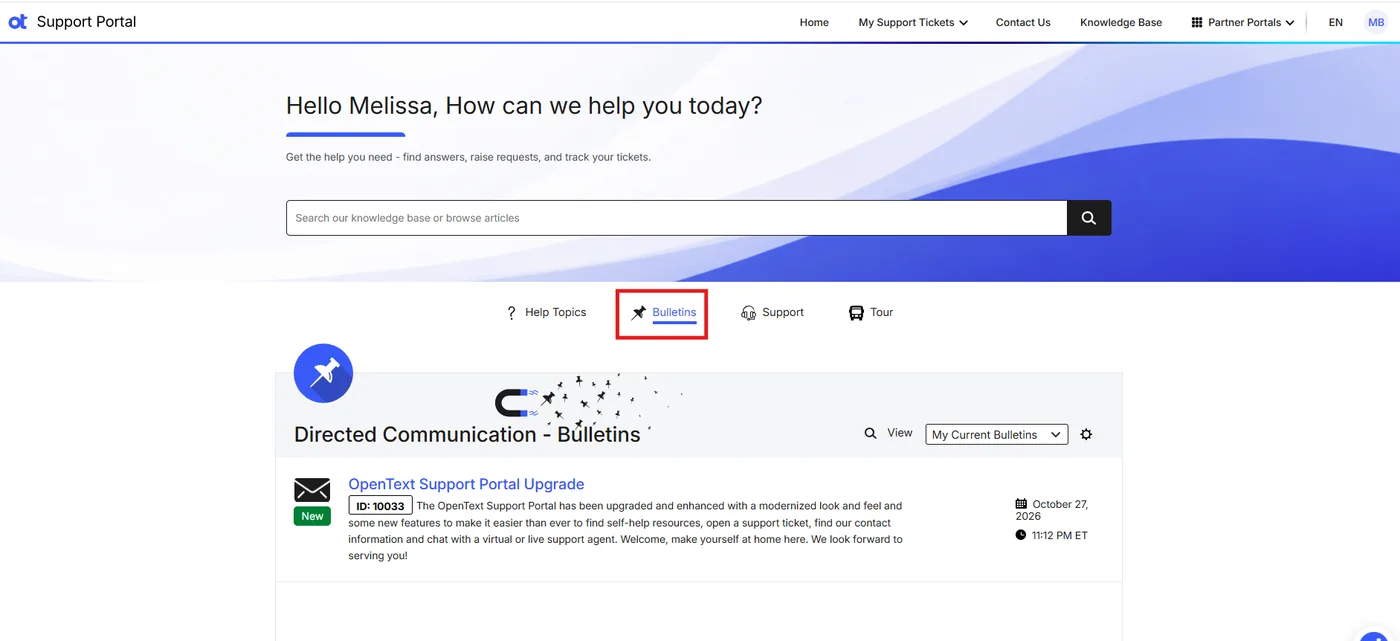
Figure 4. The Bulletins tab on the home page.
Subscribe to Bulletins
- Select the gear icon, then choose Subscriptions Settings.
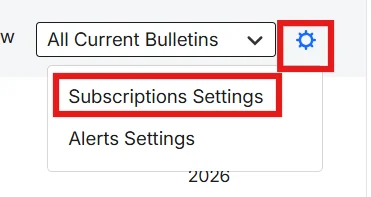
Figure 5. Open Subscriptions Settings from the gear icon.
- Check the box for Global Support to receive support bulletins, then select Save.
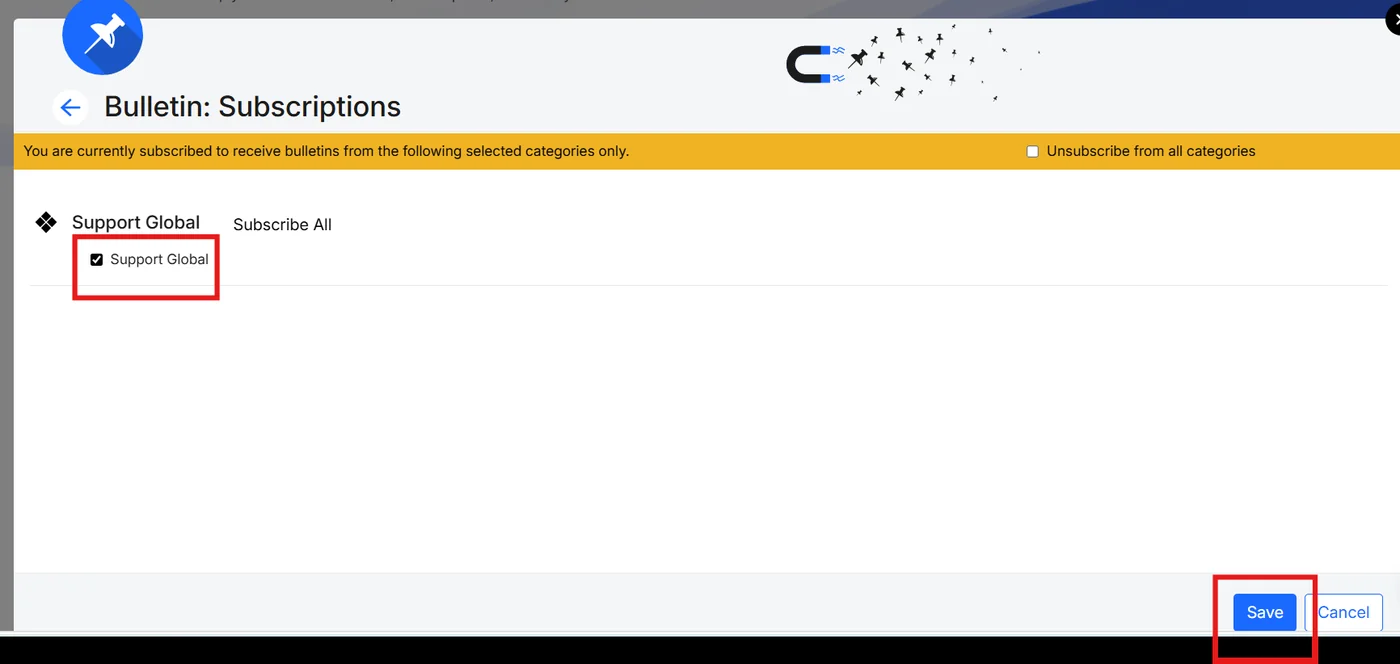
Figure 6. Select Global Support and click Save.
View your Bulletins
Select a bulletin title to read its details.
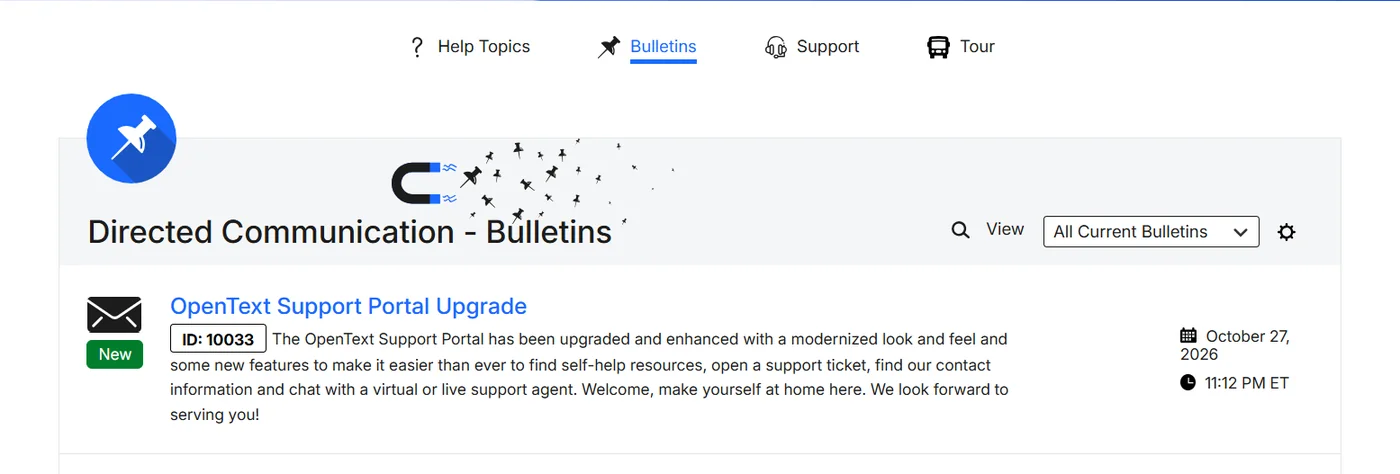
Figure 7. The bulletin list.
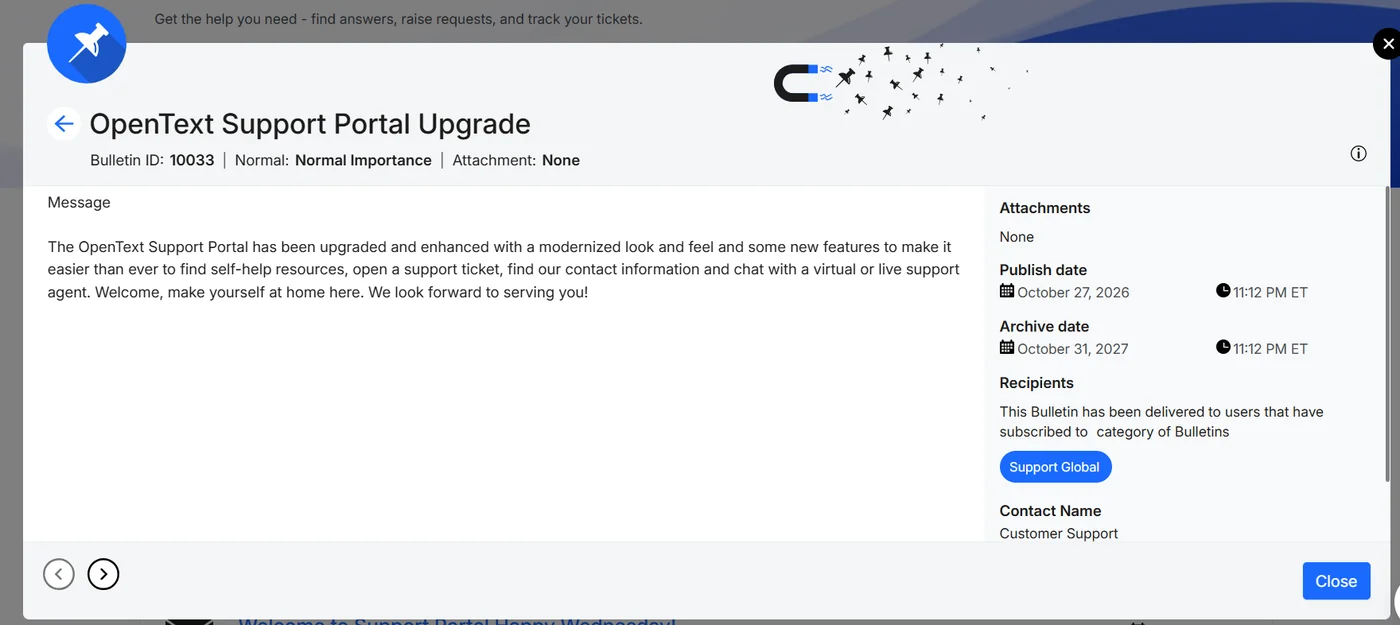
Figure 8. A bulletin’s details.
5. Chat
Chat with OpenText support any time:
- Select the OT icon near the bottom of the screen.
- Select Customer Support.
Every chat begins with Aimy, our AI-based virtual assistant. If Aimy cannot resolve your question, you can choose to continue with a live support agent.
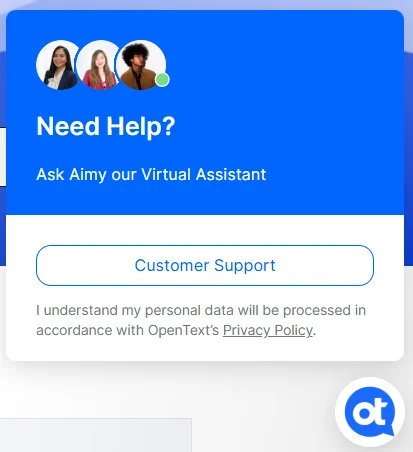
Figure 9. Start a chat from the OT icon.
6. Support tickets
Open a new ticket
- From the My Support Tickets menu, select Open a New Ticket.
- Enter an issue summary. As you type, the portal suggests knowledge articles that match your keywords. Open them to try to resolve the issue yourself.
- If you still need help, complete the remaining required fields and select Submit Ticket.
Required fields are marked with a red asterisk (*).
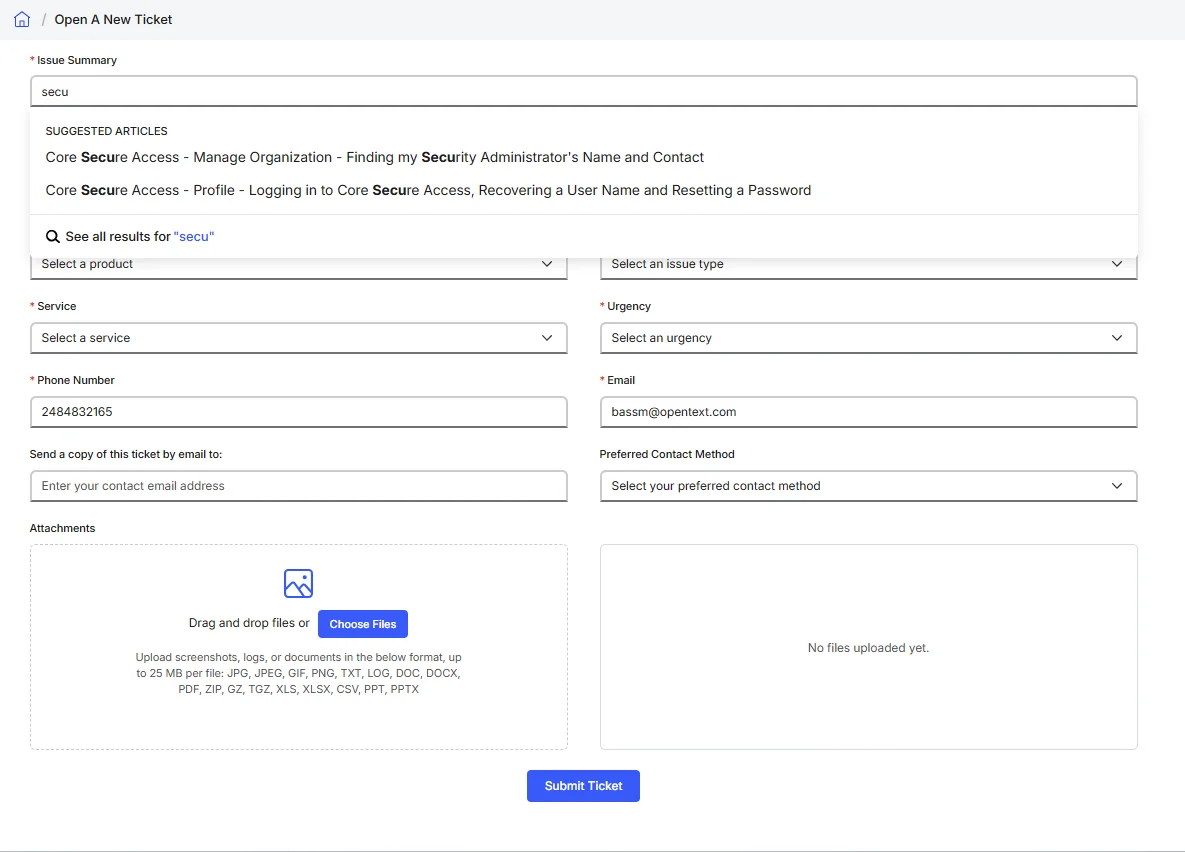
Figure 10. The Open a New Ticket form.
View your tickets
The My Tickets screen lists your tickets. You can:
- Filter by status
- Search by ticket number or keyword
- Export your ticket list
Note: Selected users can view all tickets for their company. This feature is available to OpenText clients only, not to trading partner users.
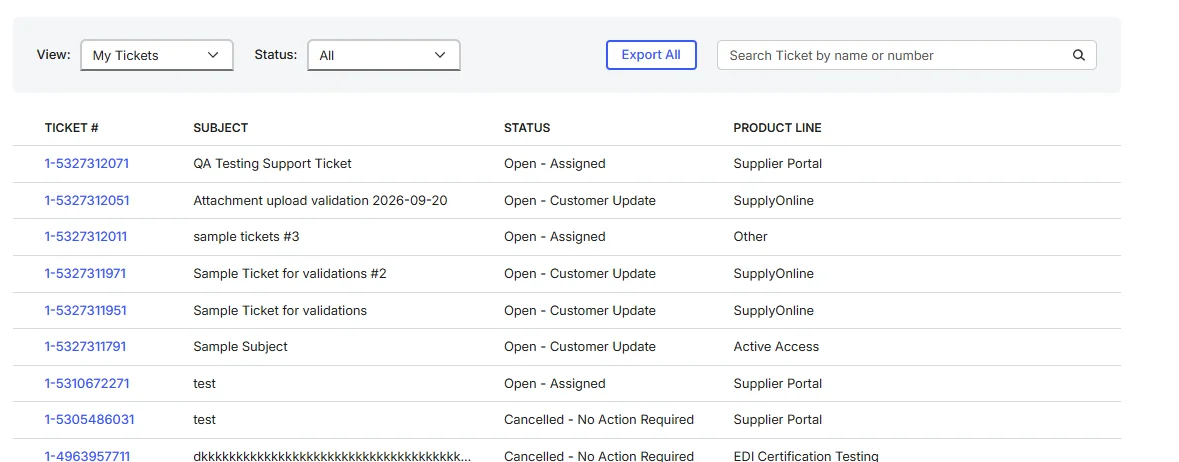
Figure 11. The My Tickets list.
Update or close a ticket
Select a ticket number to view its details. From there you can:
- Select Add New Update to provide more details or respond to a question from the Support team.
- Select Request Ticket Closure when you believe your ticket is ready to close.
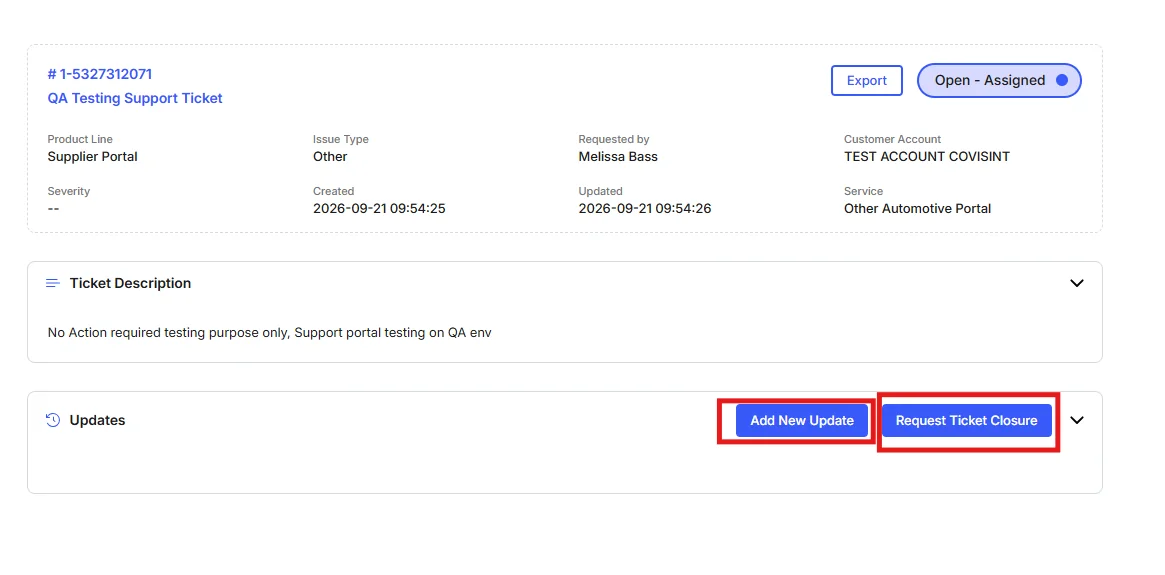
Figure 12. Ticket details, with Add New Update and Request Ticket Closure.
7. Knowledge Base
Search for articles by name or keyword or use the filters to browse. You can filter by Product Line, Audience (user role), Area, and content type.

Figure 13. Knowledge Base search filters.
Each article shows its publish date and tags for audience and product. Use Copy Link to save the article’s address so you can find it again easily.
If an article does not solve your issue, browse or search for another, or select Open a New Ticket to request help.
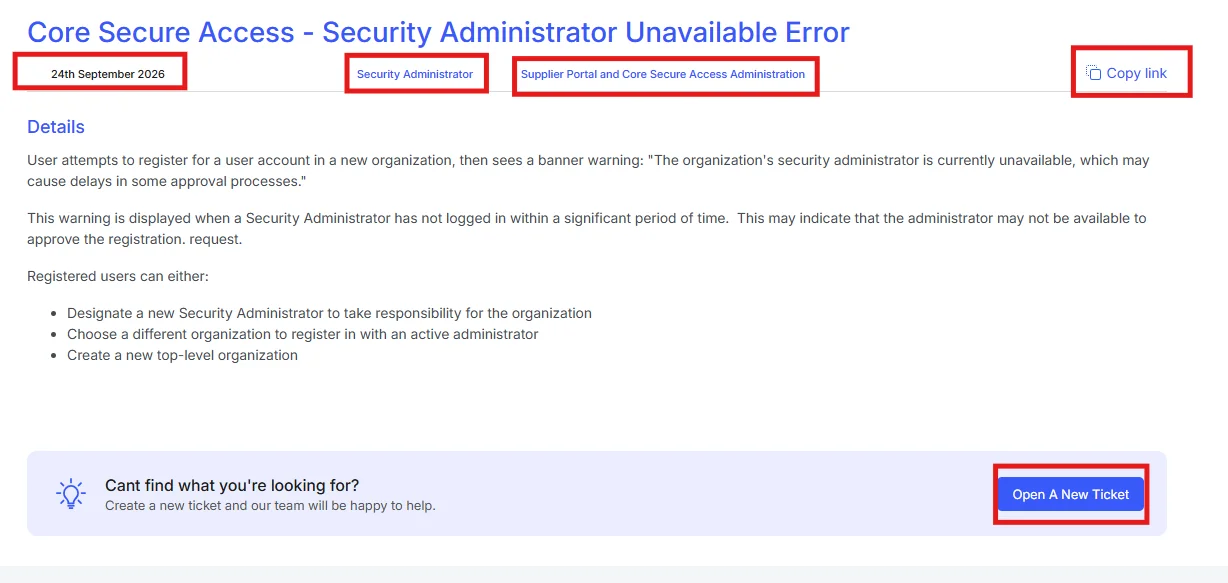
Figure 14. A knowledge article.
8. Contact Us
Select the Contact Us tab to find local toll-free numbers. Filter by region or search by country.
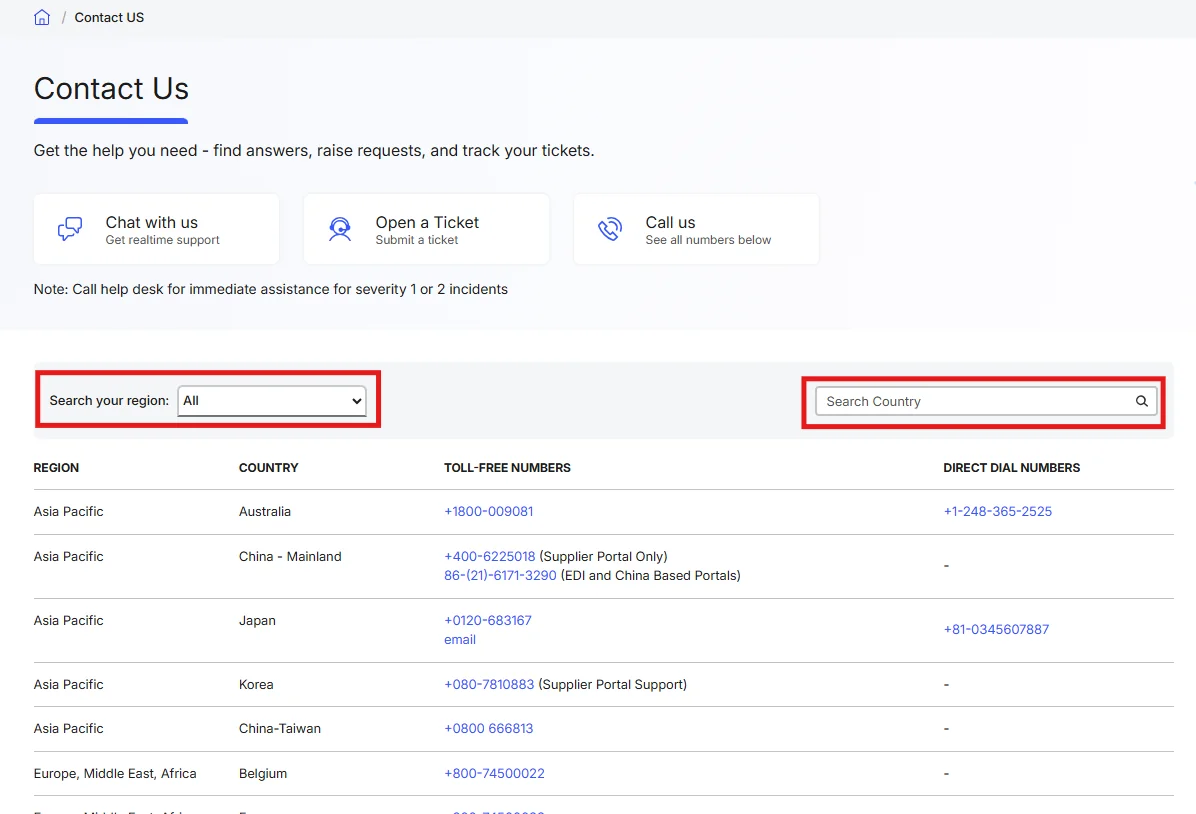
Figure 15. Toll-free numbers by region and country.
Thank you for taking the tour. We hope you enjoy the new Support Portal.